
JL111 Mobile Application Installation and Security Verification Manual
This comprehensive technical installation manual provides verified configuration procedures, cryptographic integrity checks, and device permission guidelines for Filipino mobile players accessing the JL111 platform.
Technical Specification Summary
| Parameter | Verified Standard | Operational Context |
|---|---|---|
| Operating System Support | Android 8.0+ / iOS 14.0+ | Compatible with modern Philippine mobile devices |
| Android Package Size | 28.4 MB (APK Binary) | Optimized for high-speed mobile data downloads |
| Cryptographic Hash Standard | SHA-256 Checksum | Guarantees complete package integrity against tampering |
| Apple Device Format | Safari Progressive Web App (PWA) | Zero App Store download hurdles or regional blocks |
| Regulatory Compliance | PAGCOR 21+ Mandate | Enforces age gating and secure transactional handoffs |
Verifying the official Android APK cryptographic checksum
When downloading application binaries outside official distribution marketplaces, verifying cryptographic signatures is the most dependable line of defense against malicious code injection. The official JL111 Android package carries a unique SHA-256 cryptographic digest that changes completely if even a single byte of the application code has been modified.
Before initiating installation on your smartphone, check the exact package properties. The official file name follows the standard release convention, measuring approximately 28.4 megabytes in storage size. You can verify the SHA-256 hash directly on Android using free utility tools such as Hash Droid or by running an integrity command within an Android terminal emulator.
If the calculated hash digest fails to match the authentic sequence displayed on the secure desktop portal, abort the installation immediately and delete the downloaded file from your storage folder. Installing an unverified binary from third-party social media groups or unofficial mirror sites exposes your device to potential keystroke logging and credential theft.
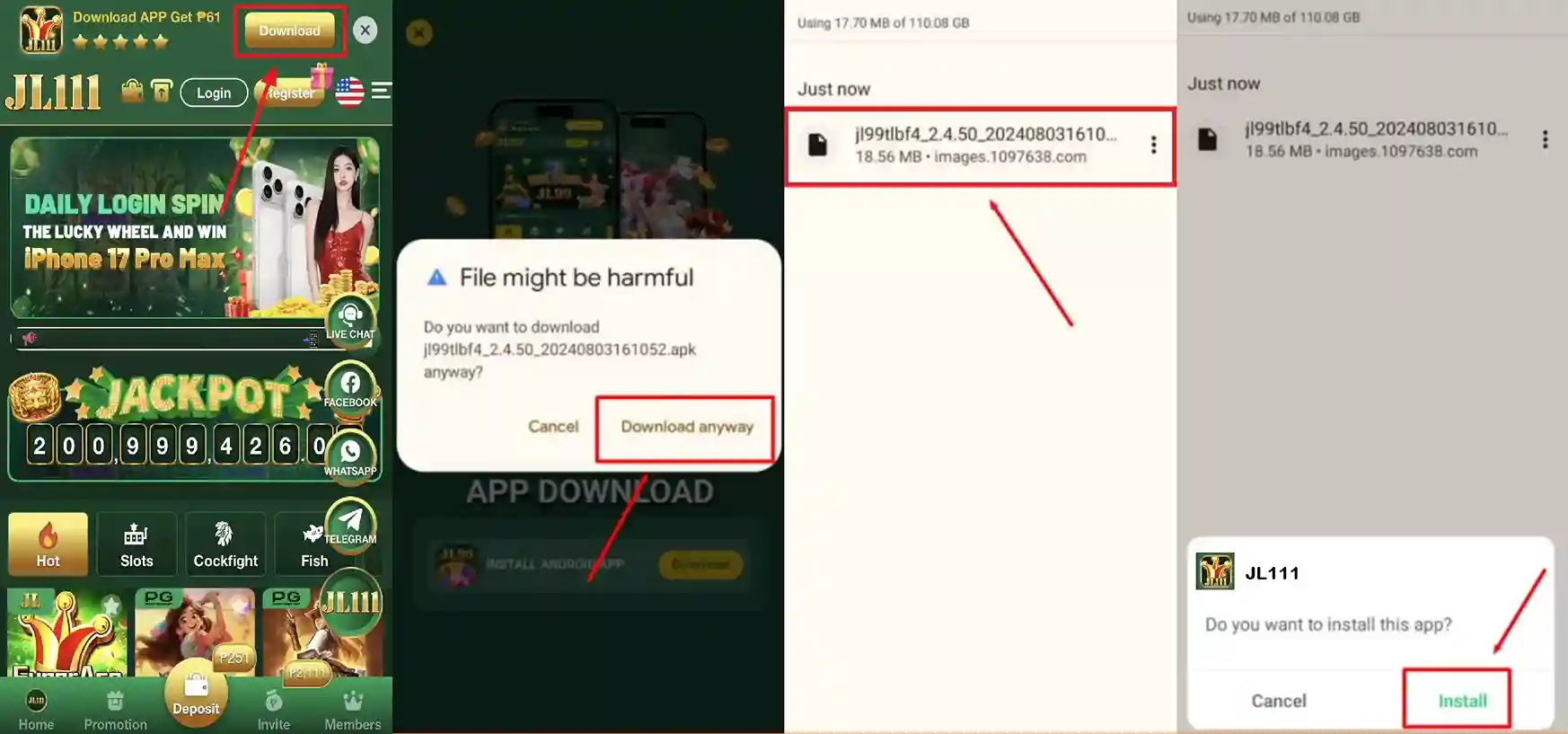
Configuring security permissions for third-party application packages
Modern versions of Google Android (Android 12, Android 13, and Android 14) enforce granular installation permissions rather than the older global unknown sources toggle. This architectural enhancement requires users to grant installation rights specifically to the single browser application utilized to download the package file.
Follow this standard sequence to authorize package deployment cleanly:
- Open your Android device settings menu and select the Apps category.
- Scroll down and tap Special App Access, located at the bottom of the advanced preferences list.
- Select Install Unknown Apps to view all installed applications capable of triggering installations.
- Locate your web browser (such as Google Chrome or Brave) and toggle Allow from this source to active.
- Return to your file manager or browser downloads folder and tap the package to complete installation.
Once installation finishes successfully, return to device settings and toggle the permission back to disabled. Keeping the authorization inactive prevents unauthorized background downloads from executing automatically during future web browsing sessions.
Setting up progressive web applications on Apple iOS Safari
Due to strict App Store policy restrictions on real-money gaming software across the Philippine territory, Apple iPhone and iPad users can access the platform through Progressive Web Application (PWA) architecture. The PWA runtime leverages Apple WebKit caching to deliver identical touch responsiveness and fullscreen display without downloading third-party enterprise certificates.
To install the web application on any modern iPhone running iOS 14 or higher:
- Launch the native Apple Safari browser and navigate directly to the verified mobile web portal.
- Ensure the HTTPS padlock icon appears securely in the top navigation address bar.
- Tap the central Share icon situated on the bottom navigation toolbar (the square box with an upward pointing arrow).
- Scroll down the options list and select Add to Home Screen.
- Confirm the title label and tap Add in the upper right corner of the confirmation panel.
An application icon will now appear on your iOS home screen. Launching the platform via this dedicated icon launches a standalone WebKit window that hides browser navigation bars, maximizing your visible screen area for slot reels and live dealer tables.
Preventing mobile package tampering and spoofed installation files
Cybersecurity threats targeting Philippine mobile players have grown increasingly sophisticated. Unofficial discussion forums and messaging channels frequently circulate compromised package files claiming to offer automatic winning algorithms, altered payout percentages, or unlocked VIP tiers.
In reality, certified online casino games execute random number generation exclusively on secure remote game provider servers. Modifying local application code cannot influence spin outcomes on JILI or Evolution servers. Instead, modified package files usually embed unauthorized tracking routines designed to intercept two-factor SMS codes or extract saved payment credentials.
Legitimate mobile packages require only basic internet connectivity and local asset caching permissions. If an installation file requests access to your contact book, SMS inbox, location coordinates, or device camera, decline the installation immediately and delete the package.
Device hardware requirements and battery optimization settings
To maintain steady 60 frames per second animations during complex cascading sequences on games like Super Ace or high-definition live baccarat video streams, your smartphone should meet balanced hardware specifications.
| Component | Minimum Requirement | Recommended Standard |
|---|---|---|
| Device Memory (RAM) | 2 GB RAM | 4 GB to 8 GB RAM |
| Operating System | Android 8.0 / iOS 14.0 | Android 12+ / iOS 16+ |
| Network Connection | 3G / 4G LTE (2 Mbps) | 5G Mobile Data or Wi-Fi (10+ Mbps) |
| Display Refresh Rate | 60 Hz Standard | 90 Hz or 120 Hz Dynamic |
Aggressive battery saver modes found in Android custom skins (such as Xiaomi MIUI or Samsung One UI) may terminate background web socket connections unexpectedly. To prevent mid-spin disconnections, navigate to your device battery manager, select the gaming application or browser, and set background activity to unrestricted.